Why Do My Emails Go to Spam in Outlook but Not Gmail?
The same newsletter lands in Gmail’s inbox and Outlook’s junk folder. Same message, same day, same list. Gmail readers open it. Outlook readers say it never came. Every dashboard you check shows green.
Here is the short answer. Gmail and Microsoft judge your mail separately, so a clean report from one says nothing about the other. When only Outlook junks your mail, the most common cause is your sending IP address, which Microsoft cares about more than Gmail does. The fastest checks: a blocklist check on the IP you send from, and Microsoft’s free SNDS page. The rest of this article walks the causes and the fixes.
Gmail and Outlook keep separate scorecards
Two filters. Two histories. Two verdicts. Google builds its opinion around your domain: the reputation graphs in Google Postmaster Tools, whether people open and reply to your mail, and your email records. Microsoft runs a different system. It leans on your sending IP address, and it reports through pages most senders never open.
Microsoft also got stricter. On May 5, 2025 it began enforcing rules for big senders: 5,000 or more emails a day to Outlook.com must pass SPF, DKIM and DMARC. Failures got temporary errors at first. Now they can get outright rejections, like 550 5.7.515 Access denied. Microsoft announced this on its Tech Community blog. These checks are the minimum. Where your mail lands is decided above them, by signals the two providers weigh differently.
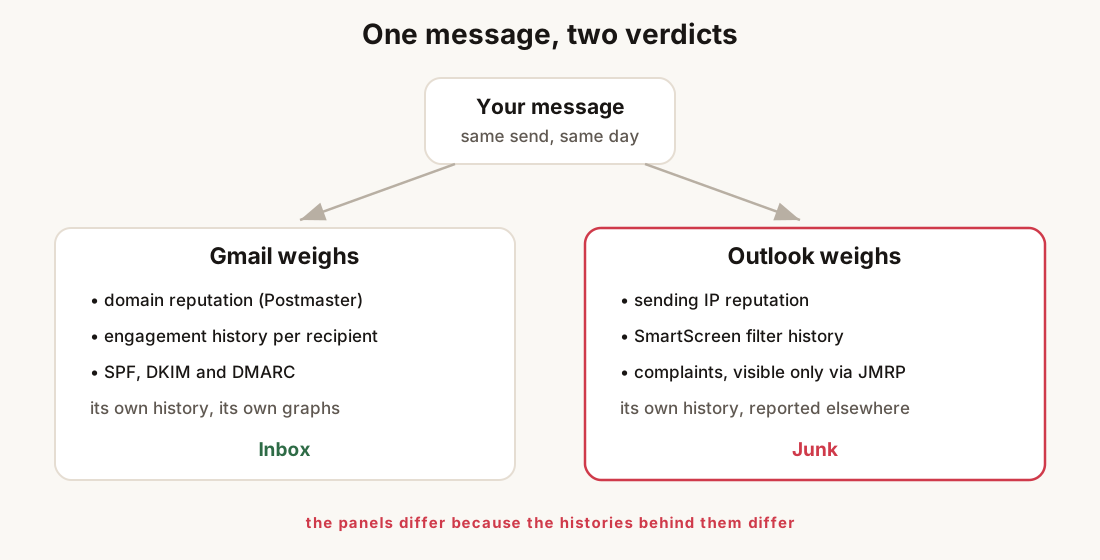
Do this: prove the gap is real before you change anything. Send one test to an Outlook.com address you own and one to Gmail. A confirmed split puts you in this article. Both going to junk puts you in the spam diagnostic hub instead.
The three causes, ranked
Cause one: your sending IP has a bad record
The most common answer. Your email leaves from an IP address, the number that identifies the mail server. On a sending platform, that IP is often shared with its other customers. Microsoft keeps a record for that IP: complaints, spam trap hits, what everyone on it has sent. A neighbour’s bad sending can sink your mail at Outlook.
Gmail pays less attention to the IP and more to your domain. So the split in the title happens: your domain is clean, your records pass, and Outlook still junks you.
The tell: run the blocklist checker on the sending IP, not just your domain. Find the IP in the first Received: line of a message you sent, visible in the header analyzer. A listed IP, or listings that come and go across weeks, is your answer.
What to do: on a shared pool, ask your platform about the pool’s standing and about a dedicated IP. If the IP is yours and listed, fix the cause first, then request removal at Microsoft’s sender portal, sender.office.com. Removal without the fix earns a relisting, usually fast.
Cause two: complaints you cannot see
Gmail gives every sender Postmaster Tools, with a spam-rate graph against the 0.3 percent line. Microsoft has the same kind of data, but you must ask for it.
Microsoft’s complaint program is JMRP, the Junk Mail Reporting Program. When an Outlook user clicks “junk”, JMRP can forward that message to you. Without it, a complaint spike at Microsoft is invisible. No dashboard shows it. The first sign is your mail landing in junk. The August 5 post on Gmail and Yahoo sender requirements explains the complaint limits. Microsoft holds you to the same 0.3 percent line, but tells you about it far less.
The tell: sign up for JMRP. It is free. If reports start arriving, you have been collecting complaints you never saw, and the messages show you which campaign drew them.
What to do: read what the complaints name. It is usually one segment, one old list, or one campaign. Cut it, and the complaint rate recovers with the next sends.
Cause three: Microsoft’s filter flagged the content or links
The least common cause, but real. Microsoft’s filter, SmartScreen, judges content and links its own way. A shared link shortener, a redirect through a flagged site, or an attachment type Microsoft distrusts can tip one message at Outlook while Gmail does not mind.
The tell: the split survives a fresh test with clean records, an unlisted IP, and a quiet JMRP. That leaves the message itself. Swap the link domain, or send a version without the link, and watch where it lands.
What to do: drop shared shortener domains, link from your own domain, and keep heavy attachments out of first-contact mail. This is the only cause a content change fixes. Do not rewrite a template for the other two. It will not help.
How to see what Microsoft thinks of you
Microsoft shows its view of your sending through two free portals, and both ask for your sending IP:
- SNDS, the Smart Network Data Service. Complaint rate, trap hits and volume per IP, as Microsoft sees it. This is the closest thing Microsoft has to Postmaster Tools, and it shows current data only. No history.
- JMRP, the Junk Mail Reporting Program. The complaint loop from cause two. SNDS shows the rate. JMRP shows the actual messages.
Both are free with a Microsoft account, and both are keyed to the IP. That alone tells you where Microsoft’s attention lives. A SaaS or transactional sender on a shared pool may not control the IP at all, and that is a clue in itself: if you cannot see the IP’s standing, you cannot check cause one by hand.
Do this: register both. Then look at SNDS after each campaign for a month. Those screenshots become the “before” picture you will want when a real problem lands.
Verify the fix took
Run the email health check on your sending domain and fix anything it flags. Every cause above gets worse on top of a broken record. Then test against reality: send to a real Outlook.com address and look in the junk folder yourself. That is the only test that answers the question without waiting for a customer.
What checking by hand misses
Every check above answers for one day. The Outlook side is the least watched part of email, because most senders learn Microsoft’s opinion from a reader. SNDS shows only the present. An IP listing can start on a Tuesday and clear by Friday, taking that week’s mail with it, and a hand check on Sunday never sees it. A complaint spike builds in silence for exactly as long as JMRP stays off.
That silence is what LitInboxes watches. It re-checks your records, blocklists and reputation signals every six hours. It keeps dated history that turns a slow problem into “the IP was listed on the 12th”. And it alerts you when something moves: email on every plan, Slack, Discord or webhook on Pro. There is a live demo if you want the view before the next Outlook reader goes quiet.
The checklist
- Send one test to a real Outlook.com address and one to Gmail. Confirm the split is real.
- Run the email health check and fix every record it flags.
- Find your sending IP in the first
Received:line and run the blocklist checker on it. - If it is listed, fix the cause, then submit one removal request at
sender.office.com. - Register SNDS and JMRP. Read what the first JMRP reports name.
- Cut the segment or campaign the complaints point at.
- Retest with a real Outlook address and check the junk folder yourself.
- Put the domain and IP on a watch cycle, weekly by hand or with continuous monitoring, so the next Microsoft-side change announces itself.
Fix mail that Outlook junks but Gmail delivers
- Confirm the gap is Outlook-specificSend the same test message to an Outlook.com or Hotmail address you own and to a Gmail address. If Outlook junks it and Gmail does not, the problem is on Microsoft's side, not your content or your list.
- Check your recordsRun the email health check on your sending domain. SPF, DKIM and DMARC must all pass first. Microsoft enforces all three for big senders, and nothing else in this diagnosis means much until they do.
- Check the sending IP, not just the domainFind the IP in the first Received line of a sent message with the header analyzer, then run the blocklist checker on it. Microsoft weighs the IP more than Gmail does, so an IP listing is the top cause of this gap.
- Look at Microsoft's own view of youSign up free for SNDS, the Smart Network Data Service, with your sending IP range, and for JMRP, the Junk Mail Reporting Program, with your domains. SNDS shows complaints and trap hits per IP. JMRP forwards the messages Outlook users marked as junk.
- Delist and fix the cause behind the listingIf the IP is listed, fix the cause first, then ask for removal at Microsoft's sender portal, sender.office.com. A removal request on an unfixed cause earns a fast relisting.
- Verify with a real Outlook addressAfter the fix, send to the Outlook address from step one and check the folder yourself. The real junk folder is the only test that answers the question.
Frequently asked questions
Gmail delivers my mail fine. Does that prove my setup is correct?
It proves your records and your standing at Google are fine. Microsoft keeps its own score for your domain and your IP, runs its own filter, and collects its own complaints. Two providers can disagree about the same sender, and both be honest.
What is the 550 5.7.515 bounce?
It is the rejection Microsoft sends to a big sender, 5,000 or more emails a day to Outlook.com, that fails the SPF, DKIM and DMARC checks Microsoft began enforcing on May 5, 2025. The dedicated 550 5.7.515 guide walks that bounce. Junk placement with no bounce means you are past those checks and into reputation, which is what this article covers.
Do these rules apply to Microsoft 365 business mailboxes too?
The published rules name Outlook.com and Hotmail, the consumer addresses. Business Microsoft 365 tenants run their own filters and rules, so mail can pass Outlook.com and still get held by a company gateway. The sending-side fixes here are the same either way.
How do I stop this from coming back?
Watch the signals instead of waiting for complaints. IP listings can come and go inside one week, SNDS keeps no history, and the first sign is usually a customer. Checks with dated history turn that into an alert instead of a surprise.