Why Is My Email Going to Spam? A Calm Diagnostic
You sent a normal email to someone who asked to hear from you, and it landed in their spam folder. Maybe a customer mentioned it in passing. Maybe you tested it yourself and watched your own message drop into junk.
Here is the reassuring part: this is rarely about your writing, and it is usually fixable in an afternoon. Spam filters are not judging your prose. They are asking a much simpler question first, and most of the time the answer to that question is broken in a way you can see and repair today.
What the filter is actually deciding
A receiving mail server works through your message in a rough order of weight:
- Identity. Can it prove the message really came from the domain in the From address?
- Reputation. What has that domain and its sending infrastructure done lately?
- Engagement. Do the people receiving this mail act like they want it?
- Content. What is actually inside the message?
Content is last, and it carries the least weight of the four. That ordering matters because the instinct when mail lands in spam is to start rewriting subject lines, which is the one lever that almost never explains the problem. Work down the list in order instead. Most domains landing in junk fail somewhere in the first two steps.
Before you touch a word of copy, work through the four questions above in that order.
Start with the three records that prove who you are
Three DNS records do the identity work. Each answers a different question, and receivers want all three.
SPF is a list of the servers allowed to send mail for your domain. It lives as a TXT record on the domain itself and looks like this:
v=spf1 include:_spf.google.com include:sendgrid.net ~allThat says: Google Workspace and SendGrid may send for this domain, and anything else is suspicious (~all is a soft fail, -all is a hard fail). The most common breakage is a domain with two separate SPF records, which is invalid under RFC 7208 and makes the whole check fail rather than merging. The second most common is a vendor you added last year and never listed. If yours needs rebuilding, the SPF generator will assemble a valid single record from your actual senders.
DKIM is a cryptographic signature. Your sending platform signs each message with a private key, and the matching public key sits in DNS under a selector:
s1._domainkey.example.com TXT "v=DKIM1; k=rsa; p=MIIBIjANBgkqhkiG9w0BAQEFAAOCAQ8AMIIBCgKCAQEA..."DKIM matters more than SPF in one specific case: forwarding. When someone forwards your message, SPF breaks because the forwarding server is not on your list, while a DKIM signature survives intact. If your provider gave you CNAME or TXT records to paste and you never finished pasting them, that is your bug. The DKIM generator shows you the record shape your provider expects.
DMARC ties the two together and tells receivers what to do when they do not match. It is a TXT record at _dmarc.yourdomain.com:
v=DMARC1; p=none; rua=mailto:dmarc@example.com; fo=1p=none means “do not change anything, just report”. That is the correct place to start, and rua is the address where the daily aggregate reports land. Publishing DMARC is not optional any more for anyone sending in volume: Google’s email sender guidelines have required SPF, DKIM and a DMARC record from bulk senders since February 2024, and Yahoo’s sender requirements say the same. Build yours with the DMARC generator if the record is missing. If yours is already published and stuck on none, read a few weeks of reports before you move to quarantine, so you know which of your own senders the stricter policy would have blocked.
The two-minute version of all of this: run your domain through the free email health check and read the three verdicts before you do anything else.
Read one message that actually failed
DNS records tell you what should happen. Headers tell you what did happen, on a specific message, at a specific receiver. When mail lands in spam, the single most useful artifact is the raw source of that exact message.
In Gmail, open the message, use the three-dot menu and choose “Show original”. In Outlook on the web, open the message, then the three-dot menu and “View message source”. In Apple Mail, use View, then Message, then Raw Source.
Near the top you will find something like this:
Authentication-Results: mx.google.com;
       dkim=pass header.i=@example.com header.s=s1 header.b=Qn3kZ2Vd;
       spf=pass (google.com: domain of bounce@mail.example.com designates
         198.51.100.24 as permitted sender) smtp.mailfrom=bounce@mail.example.com;
       dmarc=pass (p=NONE sp=NONE dis=NONE) header.from=example.com
Three passes. That message was not junked for identity reasons, which sounds like bad news but is actually progress: it means you can stop working on DNS and move down the list. If any of the three says fail, softfail, neutral, none or permerror, you have found your cause and you already know which record to fix.
One subtlety worth knowing: dmarc=fail while both SPF and DKIM pass is a real and confusing state. It means alignment failed, so the domain that passed SPF or DKIM is not the domain your reader sees in the From line. That happens when a platform sends from its own bounce domain without a properly configured custom domain. The full walkthrough of that state, including which header line names the failing path, is in why DMARC fails when SPF passes.
Grab the raw source of one failed message and paste it into the header analyzer. It will lay out the authentication results and the hop-by-hop path for you.
If the records are clean, it is reputation
Reputation attaches to your domain first and your sending IP second, and it is built from what happened on your last few sends, not your last few years. Four things move it.
Complaint rate. This is the biggest lever you control. Google publishes a hard number: keep the spam rate reported in Postmaster Tools below 0.3%, and Google recommends staying under 0.1%. That threshold is low enough that a few hundred annoyed recipients on a list of a hundred thousand can cross it. If you are sending any volume at all and have never opened Google Postmaster Tools, set it up today. It is free and it is the only view you get into how Gmail actually sees you.
Blocklists. A listing on a major blocklist is a blunt instrument, and it explains sudden across-the-board spam placement better than anything else. The ones that matter are few: Spamhaus above all, then SpamCop and Barracuda. The hundreds of others mostly do not affect real inbox placement. Check with Spamhaus’s own lookup, which is free, and use the free delisting process if you find yourself listed. Never pay anyone for express delisting.
Domain age and history. A domain registered last week with no sending history is treated with suspicion, which is normal and temporary rather than a defect to fix. The same applies to a domain that used to send and then went quiet for a year.
Volume consistency. Providers read a sudden jump the way a bank reads a sudden wire transfer. Going from 200 messages a day to 20,000 looks like a compromised account, not a growing business. Sending in a steady, predictable pattern is a practice, not a product.
Check the blocklists first, since that is the one that produces an overnight change, then look at your complaint rate in Postmaster Tools.
Content and engagement come last
If identity is clean and reputation is healthy, then and only then is it worth looking at the message.
Engagement outweighs wording here. A list of people who opted in last month and read you every week protects you. A list you imported from an old CRM, bought, or scraped will hurt you no matter how the copy reads, because unengaged recipients dilute your signal and old addresses turn into spam traps. Filters also personalise: your history with one specific recipient influences where your mail lands for them, which is why the same message can inbox for one person and junk for another.
On content itself, the things that actually correlate with trouble are structural, not lexical: an image-only email with almost no text, a link shortener, a brand-new domain in the links, a mismatch between the From name and the domain, or an HTML template with broken markup. The folklore about trigger words is mostly folklore. Writing “free” does not send you to junk.
Before you rewrite anything, check when the recipients on this send last engaged with you, and cut the ones who have not in six months.
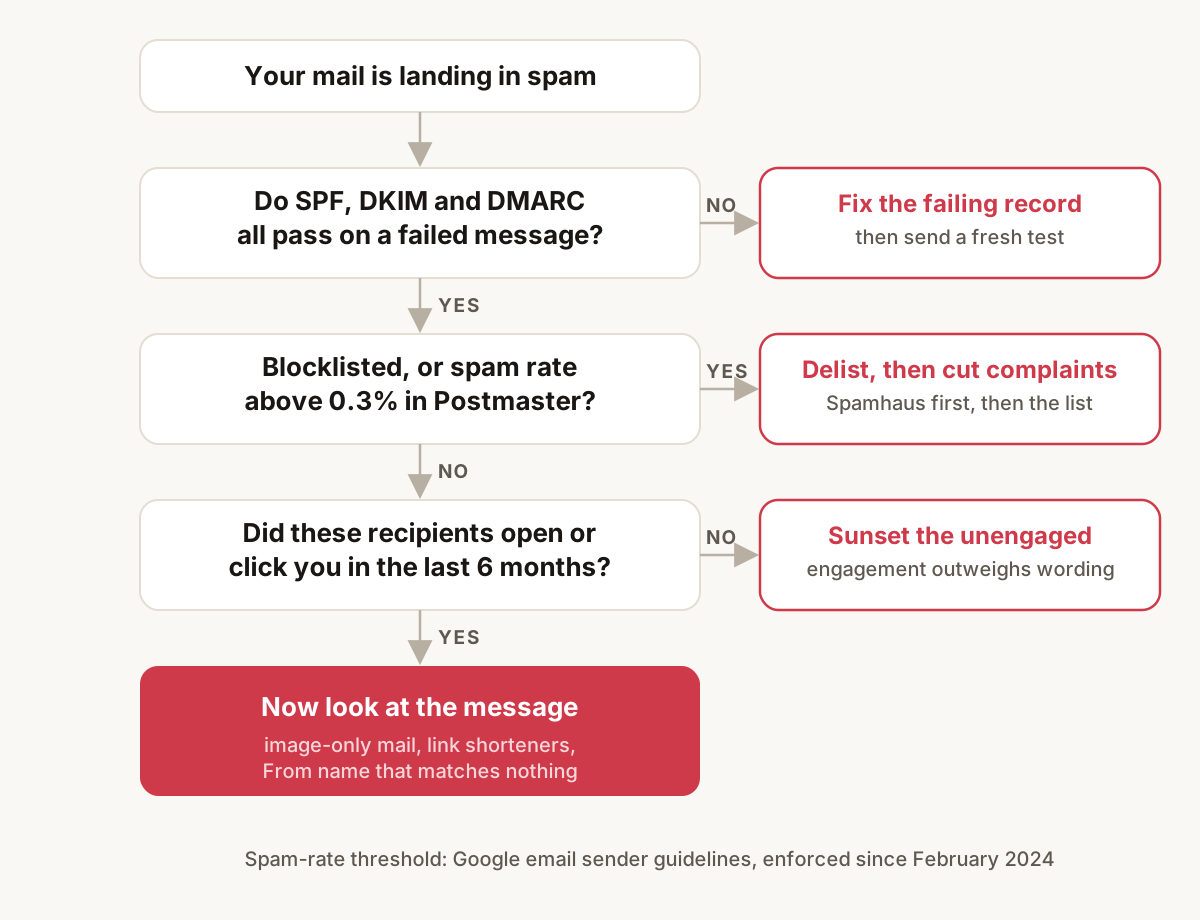
From symptom to cause
The pattern of the failure narrows the cause faster than any single test:
- Every provider junks you at once, starting on a specific day. Blocklist listing or a broken DNS record. Check both, and check when your DNS last changed.
- Only Gmail junks you. Reputation or complaint rate. Open Postmaster Tools.
- Only Outlook junks you. Microsoft weighs your sending IP more heavily than Gmail does, and its complaint data stays invisible until you register for it. See emails going to spam in Outlook but not Gmail.
- Only one company’s mail system junks you. Their filter, their rules, often an internal allowlist. Ask your contact to mark you as not spam.
- A brand-new domain junks everywhere. History, not fault. Keep sending consistently to people who asked.
- A domain that used to inbox suddenly stops. Something changed: a new sending platform, an expired DKIM key, a list import, or a campaign that drew complaints.
- Some recipients inbox, others junk, same message. Per-recipient engagement history. Nothing is broken.
- Gmail shows “via” and another domain under your name. The mail left through infrastructure that does not belong to your From domain, so both alignment paths fail. Gmail documents this as a sender mismatch.
- Headers show
spf=passbutdmarc=fail. SPF passed for a domain that is not yours: the envelope does not align with the From address. See why DMARC fails when SPF passes. - Campaigns from Mailchimp or another ESP land in spam. Platform authentication gaps. See Mailchimp emails going to spam.
- Broadcasts land in Promotions instead of Primary. Tab sorting, not a spam verdict. See emails going to Promotions not inbox.
- Bounces show
550 5.7.1in the SMTP response. Permanent rejection, but the text after the code tells you whether it is authentication policy or relay permission. See 550 5.7.1 message rejected. - Bounces show
550 5.7.515. Microsoft’s high-volume authentication rejection at Outlook.com, Hotmail, and Live. The From domain is missing passing SPF, DKIM, or aligned DMARC. See 550 5.7.515 in Outlook. - A customer says an email never arrived, and your log says delivered. Accepted is not placed: the receiving server took the message and a filter decided its fate after that. See customers not receiving my emails.
Match your symptom to that list, then run only the check it points at.
The problem with checking by hand
Everything above is a snapshot. The trouble is that all of it drifts while you are not looking. A teammate edits DNS and drops an include: from the SPF record. A DKIM key expires. Someone imports an old list on a Tuesday and the complaint rate crosses 0.3% by Thursday. A shared IP picks up a Spamhaus listing that has nothing to do with you. None of that announces itself. You find out weeks later, when a customer mentions that your invoices keep going to junk.
That gap is what LitInboxes closes. It runs these same checks on a schedule for every domain you add, keeps the history so you can see the exact day a record changed, watches the blocklists and your reputation signals, and emails or Slacks you when something moves. It is the difference between diagnosing a problem in an afternoon and noticing it existed.
Run the manual checklist below first, because it costs you ten minutes and answers today’s question. Then decide whether you want to run it yourself every week or have it run for you. If you want to see what the monitoring side looks like before signing up for anything, there is a short walkthrough here.
What to check first, in order
- Run the domain through the email health check and confirm SPF, DKIM and DMARC all resolve and pass.
- Pull the raw source of one message that landed in spam and read its
Authentication-Resultsline. - Fix whichever record failed, then send a fresh test, because DNS changes need a new message to prove themselves.
- Check Spamhaus for a listing on your domain and your sending IP.
- Open Google Postmaster Tools and look at the spam rate against the 0.3% line.
- Look at when the recipients of the failing send last opened or clicked, and stop mailing the ones who never do.
- Only now, look at the message: image-to-text ratio, link domains, From name.
Nothing on that list takes more than a few minutes, and the first two resolve most cases. Work down it in order and you will know which of the four questions your mail is failing, which is the whole job.
If you send through Amazon SES, one more cause sits above all of these: the default envelope sender is an amazonses.com address, so SPF authenticates Amazon rather than you and DMARC alignment fails until you configure a custom MAIL FROM domain.
Then put steps 1, 4 and 5 on a repeat, weekly if you do it by hand, daily if you let LitInboxes watch them for you. The signal-by-signal version, including where a weekly pass stops being enough, is in the weekly deliverability review. Spam placement is much cheaper to catch on the day it starts than on the day a customer tells you.